From your Octopus server, install the Custom Code deployment package using the following command:
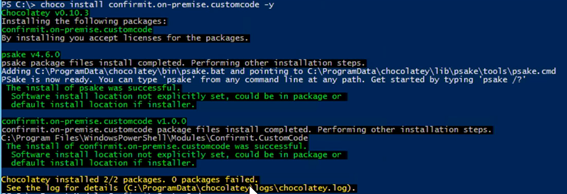
Figure 1 - Installing the Custom Code deployment package
Initializing the Custom Code Deployment Package
Re-open your Powershell command line interface. This will import the Custom Code modules required for the initialization process.
Execute the following command:
Initialize-CustomCodeBuild
This will configure the Custom Code build system to connect to Octopus in order for your DLL's to be packages and deployed. Three parameters are required:
- Octopus URL - The HTTP address for your Octopus interface. Example http://localhost:8000
- OctopusAPIKey - An API key is required for connection to Octopus. This can be generated via the Octopus web interface under the User Profile / API Keys. Label the key with a name related to it's purpose (for example CustomCode) and the key will be generated. See below.
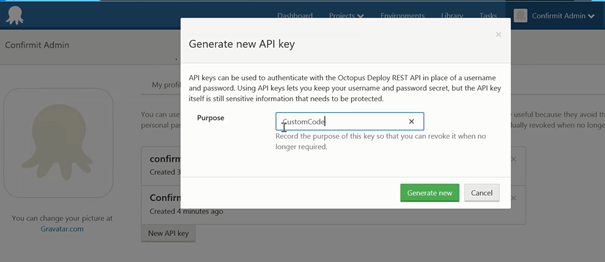
Figure 2 - Labeling the key
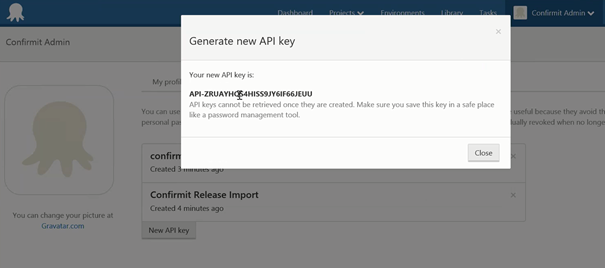
Figure 3 - The generated key
- CustomCodeWorkingDir - This location will be used as a central repository for the libraries you plan to package and deploy by Octoups locally on this server. Example of this could be
c:\confirmit\customcode.
Below is an example of these parameter being entered in Powershell, and the subsequent steps to create the custom code repository and sub-directories.
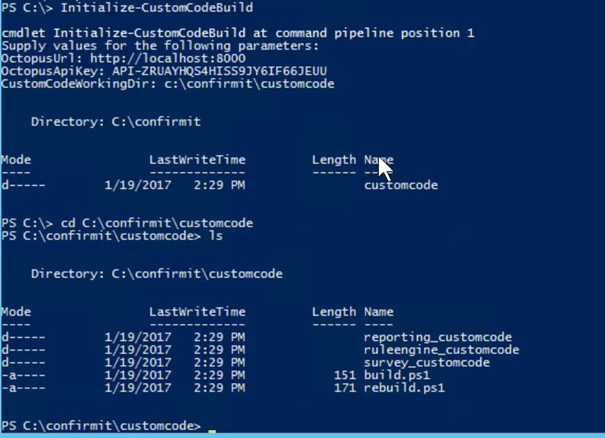
Figure 4 - Entering the parameters in Powershell